Talk toLess Annoying CRM.

Connect Less Annoying CRM to Claude and ChatGPT
View, update, and manage your CRM in plain English — no copying and pasting between tools.
25 free calls · no card needed · No technical setup · Cancel anytime
Works with Claude, ChatGPT and Cursor.
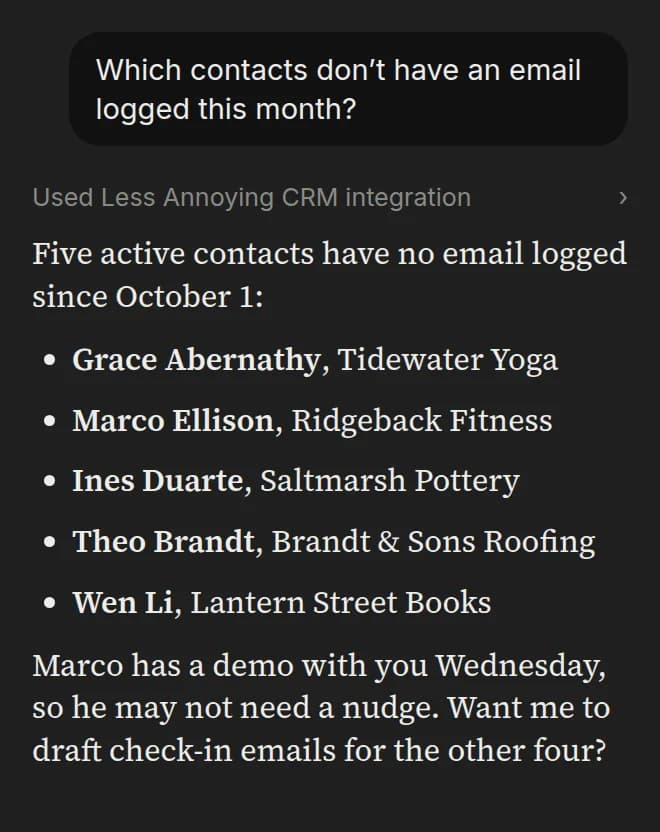
Ask Less Annoying CRM something
Less Annoying CRM · reads only
This only reads, so your assistant can answer it with the default setting.
Your assistant can do this.
Not needed — this question only reads.
Or try one of these:
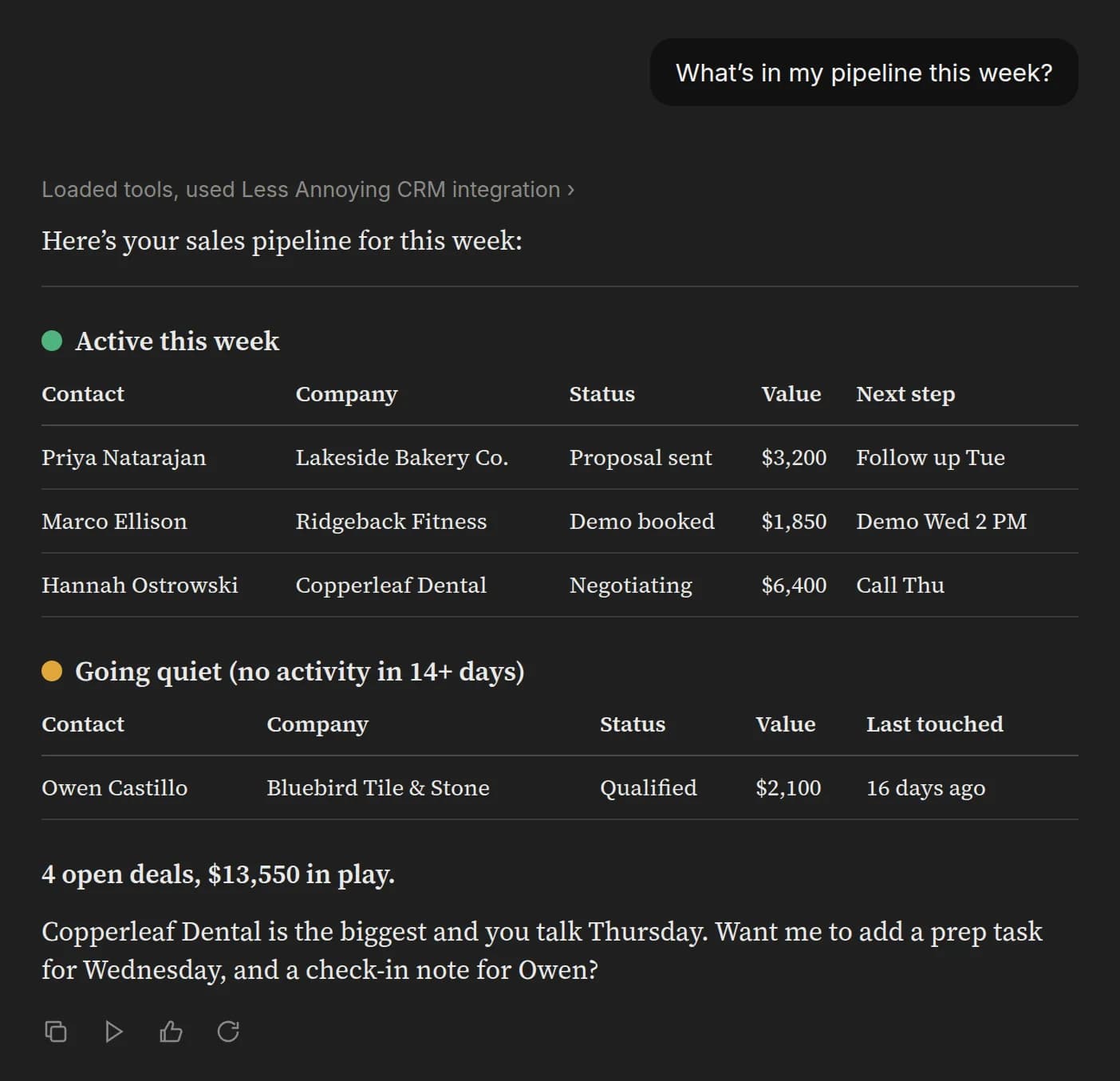
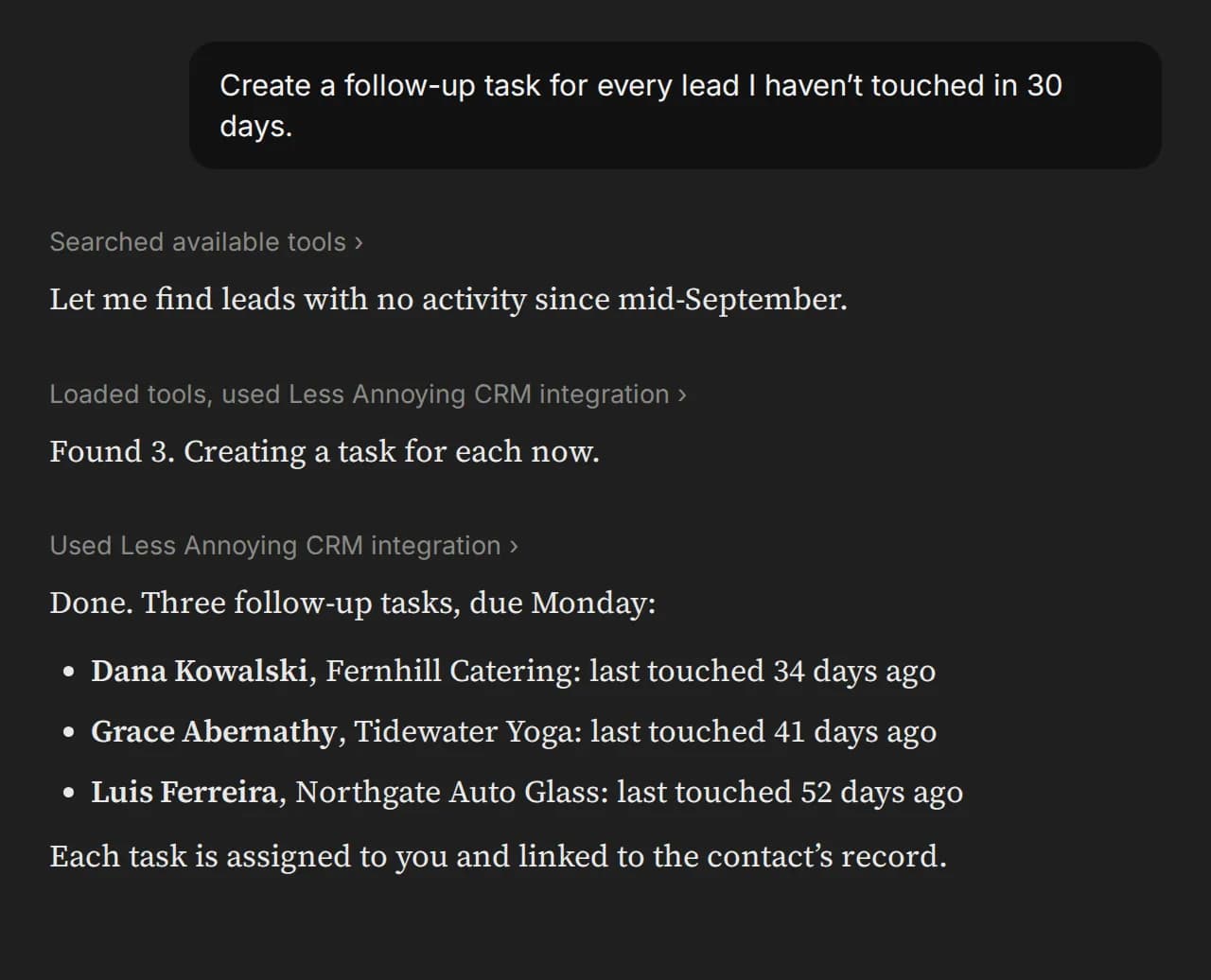
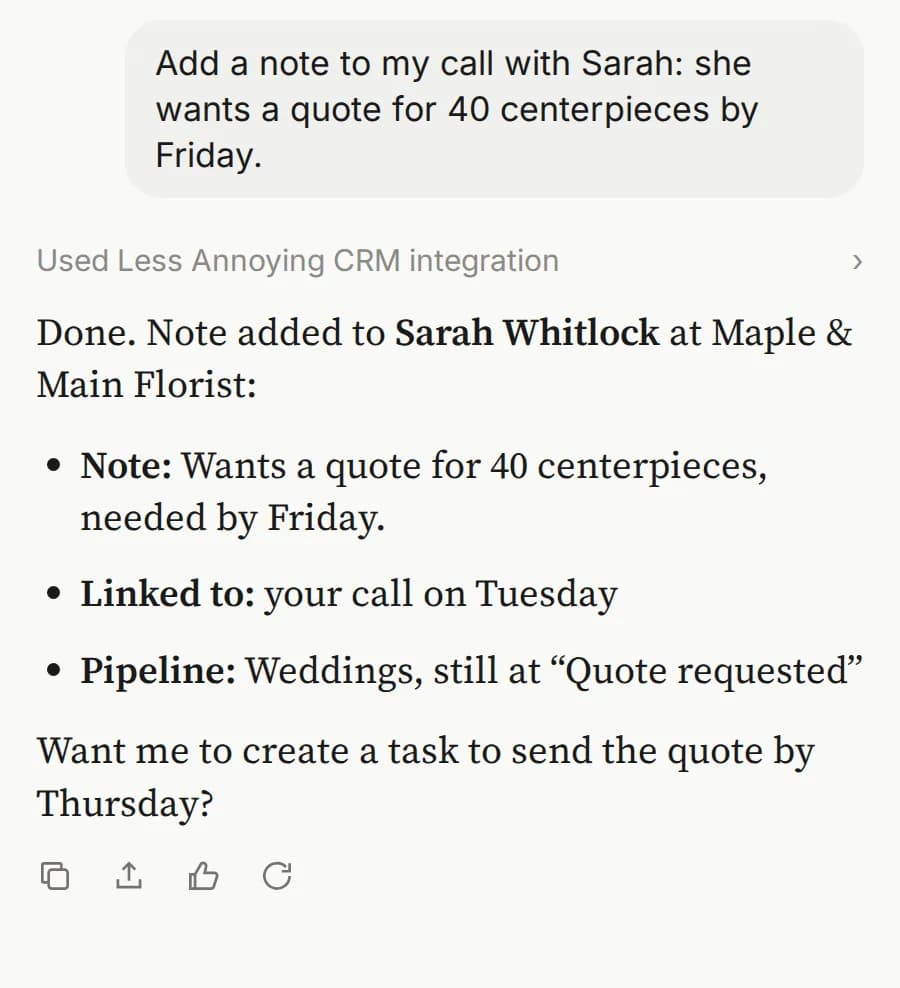
“Create a follow-up task for every lead I haven’t touched in 30 days.” Done, for all three.
Illustrations: mock-ups of Claude with made-up Less Annoying CRM demo data, not real screenshots or real customers.
What your AI can access
- Contacts & companies
- Pipelines & leads
- Notes
- Tasks
- Calendar events
- Logged emails
- Groups
Read-only by default: your assistant can look but not touch until you turn on write access, and you can set permissions per action.
What it does
AppConnect links your Less Annoying CRM account to AI assistants like Claude and ChatGPT. Once connected, you can work with your CRM the same way you’d talk to a colleague: “What’s in my pipeline this week?”, “Add a note to my call with Sarah,” or “Create a follow-up task for every lead I haven’t touched in 30 days.” The assistant reads and writes directly to your account, so there’s no copying and pasting between tools.
AppConnect is built for people who live in their CRM but don’t want to spend the day clicking through it: pulling pipeline reviews, logging notes and emails, creating tasks and events, and keeping contact records current.
Your data stays yours
- AppConnect doesn’t store your app’s data — nothing is copied, cached, or synced.
- The only thing logged is which actions were used — never their content.
- Per-action permissions: full access, read-only, or custom.
- Revoke access anytime, from either side.
- You sign in via secure authorization — no passwords are ever shared.
How to set it up
Pick where you use AI. Takes about a minute. After you sign up, your dashboard walks you through the same steps.
https://appconnect.goodsamsoftware.com/api/connectors/lacrm/mcpIn Claude
- Open Claude (desktop app or claude.ai) and start a chat.
- Click Customize, then choose "Connectors" at the top (Claude's own button names).
- Click "Add" in the top right — that opens "Add custom connector".
- Name it Less Annoying CRM and paste your app's address above into the server URL field.
- Click "Continue" and sign in when prompted.
Simple pricing
One app, $29.Every app, $49.
Single app
Perfect to start. Connect one app and talk to it.
Per month, or $290 a year (2 months free).
- 25 free calls to start — no card needed
- One connected app, fully unlocked
- All of that app’s tools
- AES-256 encryption
- Cancel anytime
All apps, the best value
Get everything. Connect every app and talk to your whole business.
Per month, or $490 a year (2 months free).
- 25 free calls to start — no card needed
- Every available app included
- All tools across every app
- AES-256 encryption
- Cancel anytime
Try it with 25 free calls · no card needed. Plans bill from the day you subscribe, cancel anytime.
View full pricing detailsCurrently available in the United States only. Not in the US? Join the waitlist
Ready to talk to Less Annoying CRM?
25 free calls · no card needed · No technical setup · Cancel anytime